How to Use GharNaksa: Create Project, Edit & Track Everything
Step-by-step GharNaksa tutorial: install the construction material tracker, create and edit a project, log materials, labor, payments, photos and export reports.
GharNaksa Team
Construction tracking for Nepal
This is the practical how to use GharNaksa guide for the Construction Material & Cost Tracker on Android. You will learn how to install the app, create a project, edit a project, log materials and labor, record payments, add progress photos, track issues, and export a report your client can trust — including NRN clients abroad.
Prefer video first? Watch the short walkthrough below (real app screens), then follow the written steps. You can also open the same tutorial section on the homepage. For why a tracker beats chat alone, see WhatsApp vs construction app and the full construction tracker app guide.
1. Install GharNaksa (or start in Guest mode)
- 1Open Google Play on your Android phone and install GharNaksa (or use the Install button on this website).
- 2Launch the app. You can explore in Guest mode without an account.
- 3When you are ready to sync, back up and invite people, create an account — your trial data can come with you.
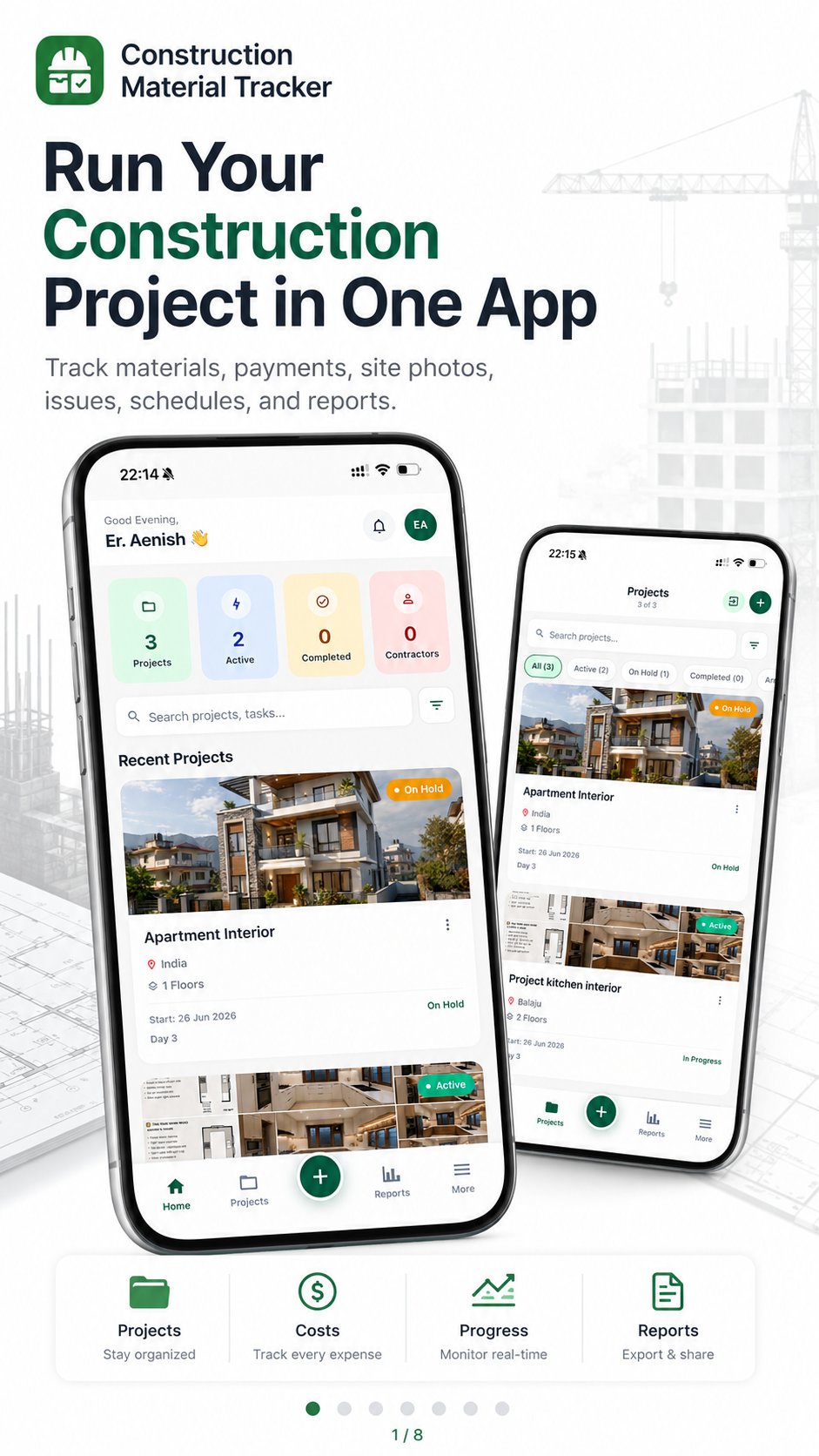
- 4On the home screen you should see your projects overview — that is the hub for everything that follows.
2. How to create a project
A project is one construction site: one house, one plot, one job. Creating it correctly is the foundation of clean tracking.
- 1From Home or the Projects list, tap to create a new project.
- 2Enter a clear name people will recognise later (e.g. “Budhanilkantha house”, “Chitwan plot A”).
- 3Add location and any notes (owner name, contractor, storey count) that help the team.
- 4Save. Open the project — materials, labor, payments, logs and reports now attach to this site only.
3. How to edit a project
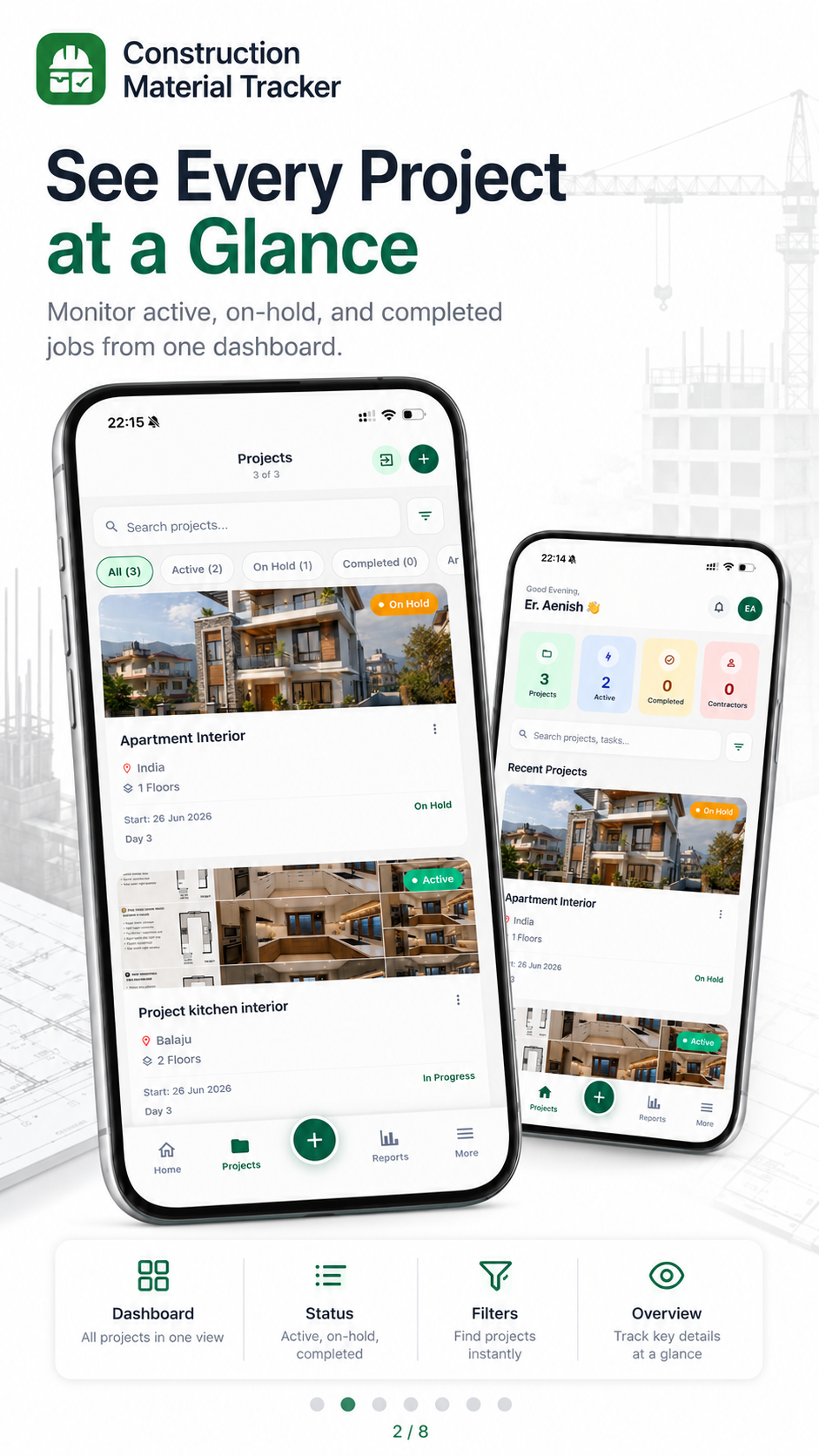
- 1Open the project from the dashboard or projects list.
- 2Edit name, location, status (active / on hold / completed) or team notes when the job changes.
- 3Do not delete history just because the name was wrong — rename and keep the ledger intact.
- 4Mark a job completed when the build finishes so active lists stay focused, while reports remain available.
Editing is for metadata and status. Day-to-day truth lives in material, labor, payment and photo entries — keep adding those rather than rewriting old chat messages.
4. Log construction materials
This is the core of a construction material tracker. Enter deliveries when they arrive — not at the end of the week.
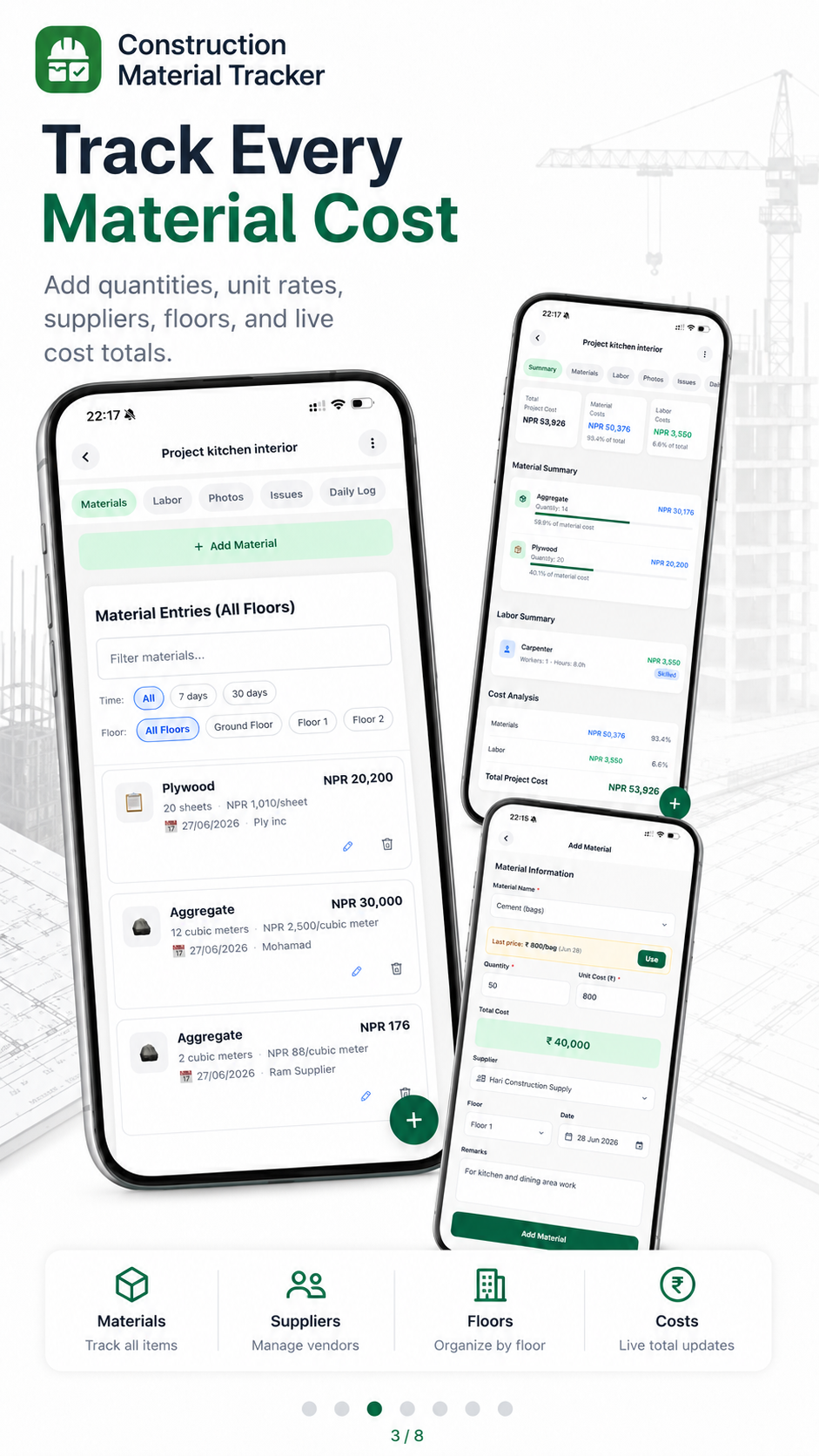
- 1Open the project → Materials.
- 2Add the material (cement, rod, sand, aggregate, bricks, etc.).
- 3Enter quantity, unit rate, supplier and date.
- 4Save. Check running totals so you know what has been bought for this site.
Deeper habits: track cement, rod and sand and how to track construction expenses in Nepal. Plan bag counts first with the free cement bags for house calculator.
5. Daily progress and site photos
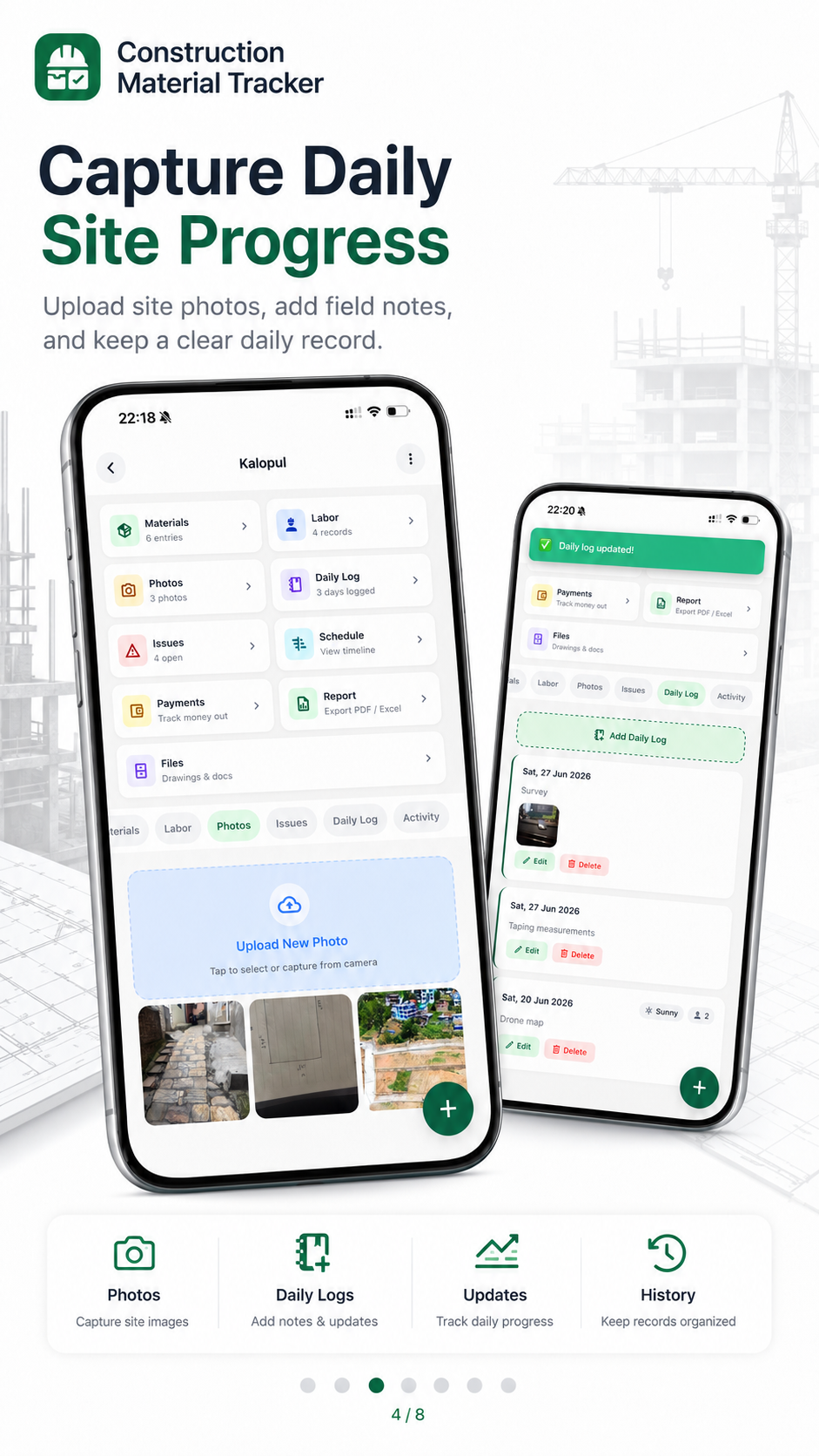
- 1Open Daily progress / daily log for the project.
- 2Write a short note: work done, crew, weather, blockers.
- 3Attach dated photos of the stage (foundation, slab, brickwork, finishing).
- 4Save — NRN clients abroad can see proof without a dozen scattered chats.
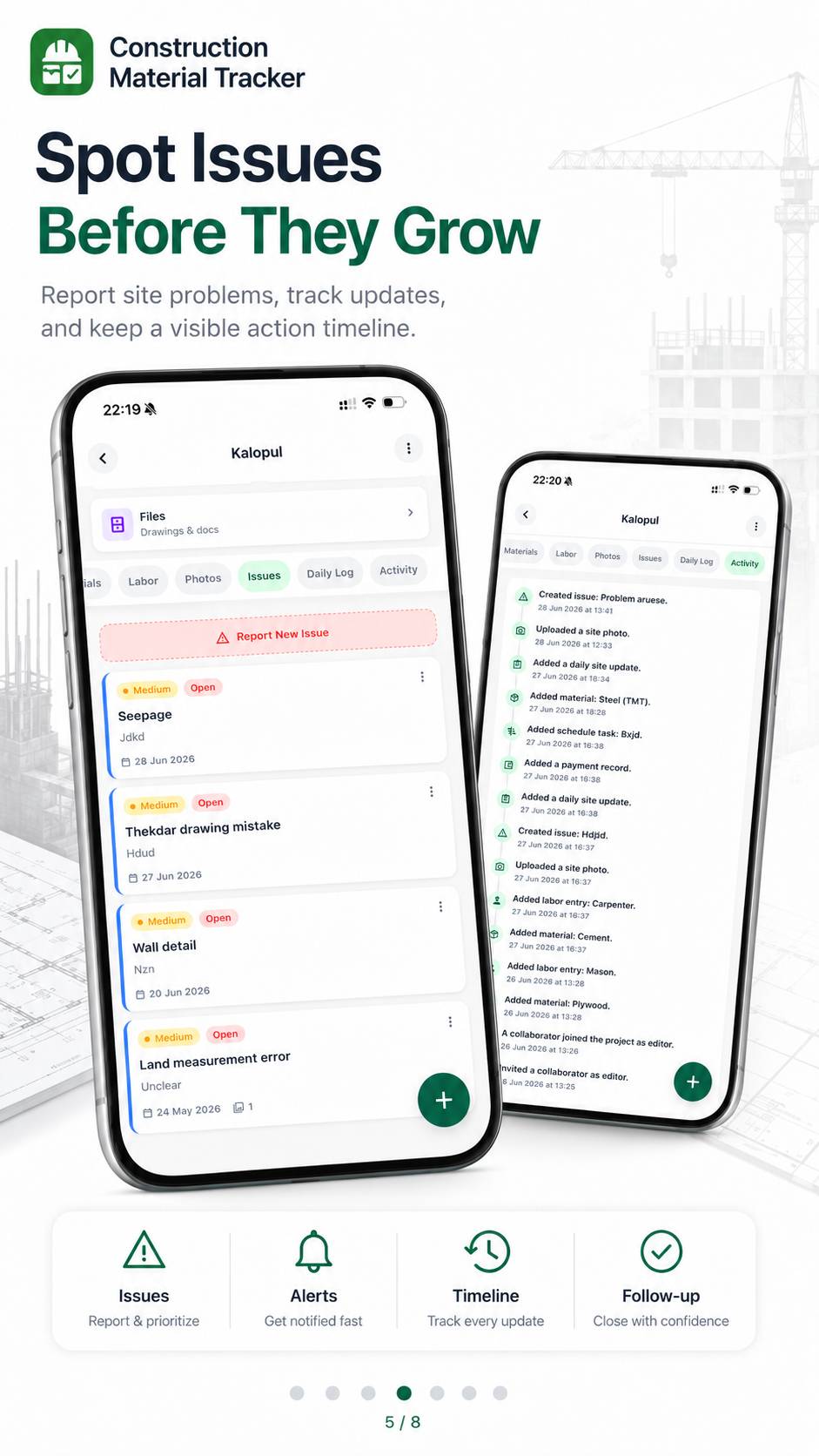
6. Track site issues
- 1Open Issues when something is wrong (missing material, bad workmanship, delay).
- 2Describe the problem; add a photo if it helps.
- 3Update status as it is discussed and resolved so nothing is forgotten mid-build.
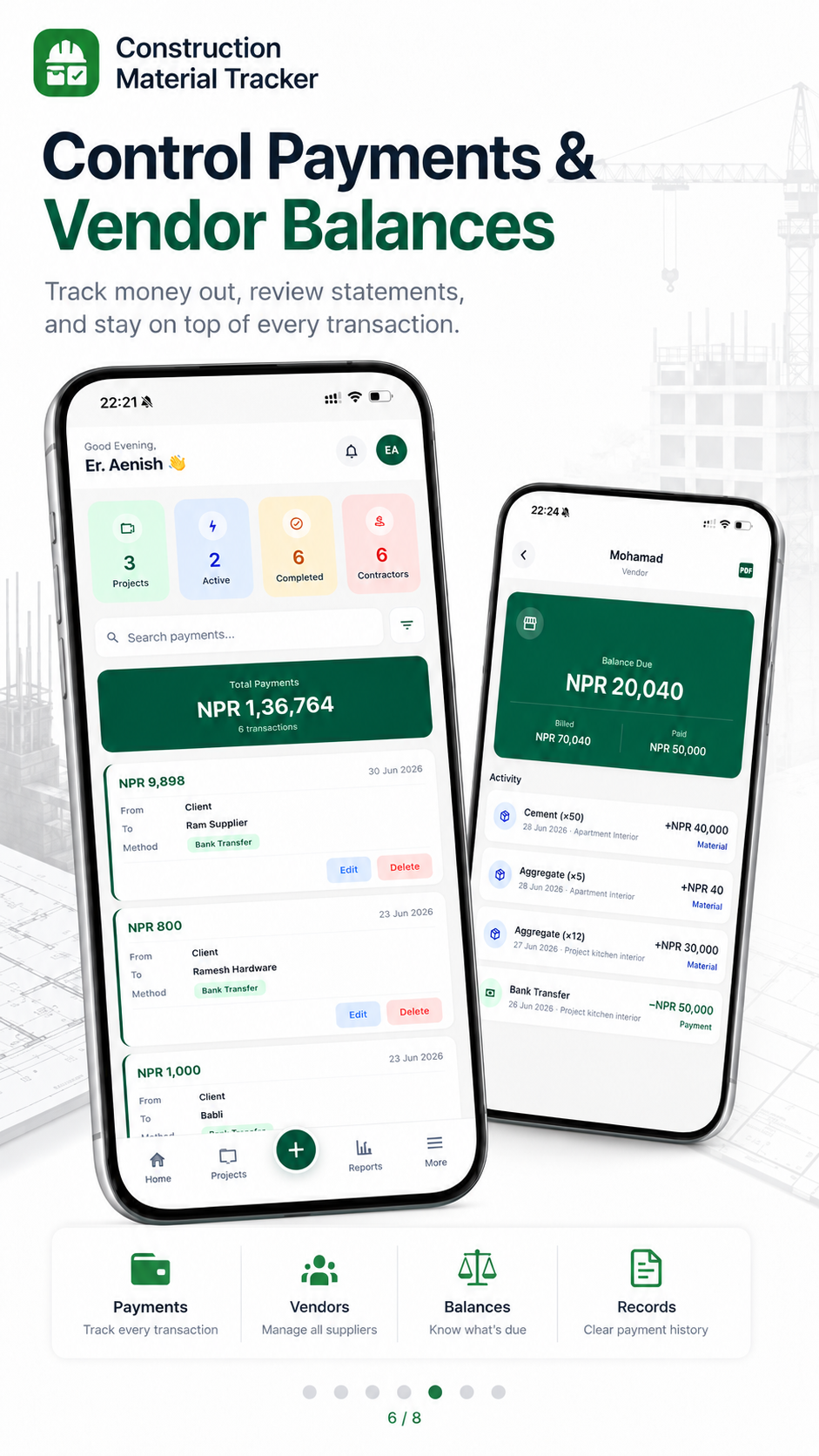
7. Record payments and balances
- 1Open Payments for the project.
- 2Log advances, supplier bills, labor payments and stage payments with date and amount.
- 3Review balances so “who got paid what” is never a phone argument.
- 4Compare payment totals against material and labor entries at month-end.
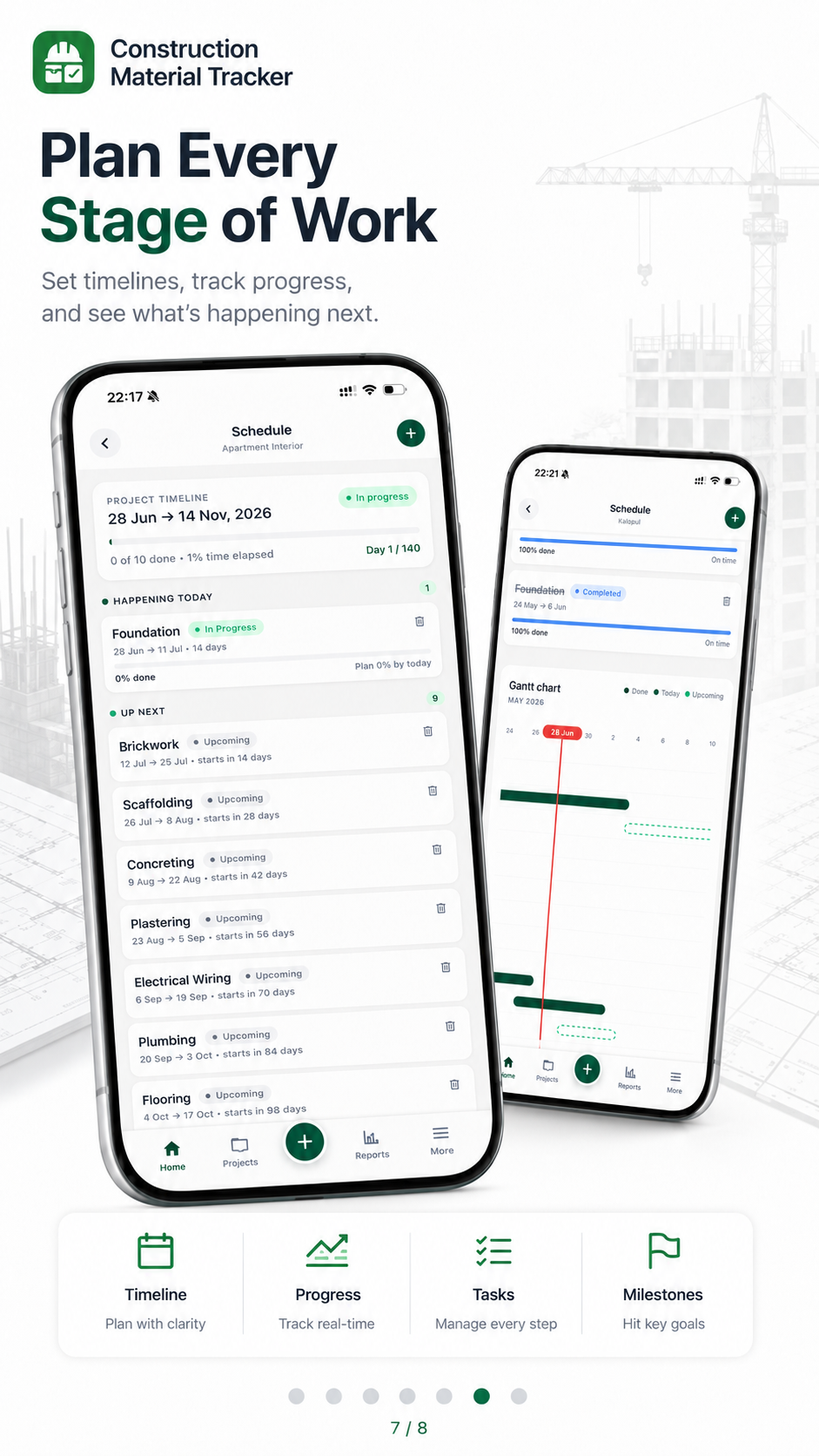
8. Schedule and stages
- 1Open the schedule / plan view for milestones (foundation, structure, finishing, handover).
- 2Update stages as work completes so the timeline matches the site.
- 3Align stage payments with verified progress — not calendar guesses alone.
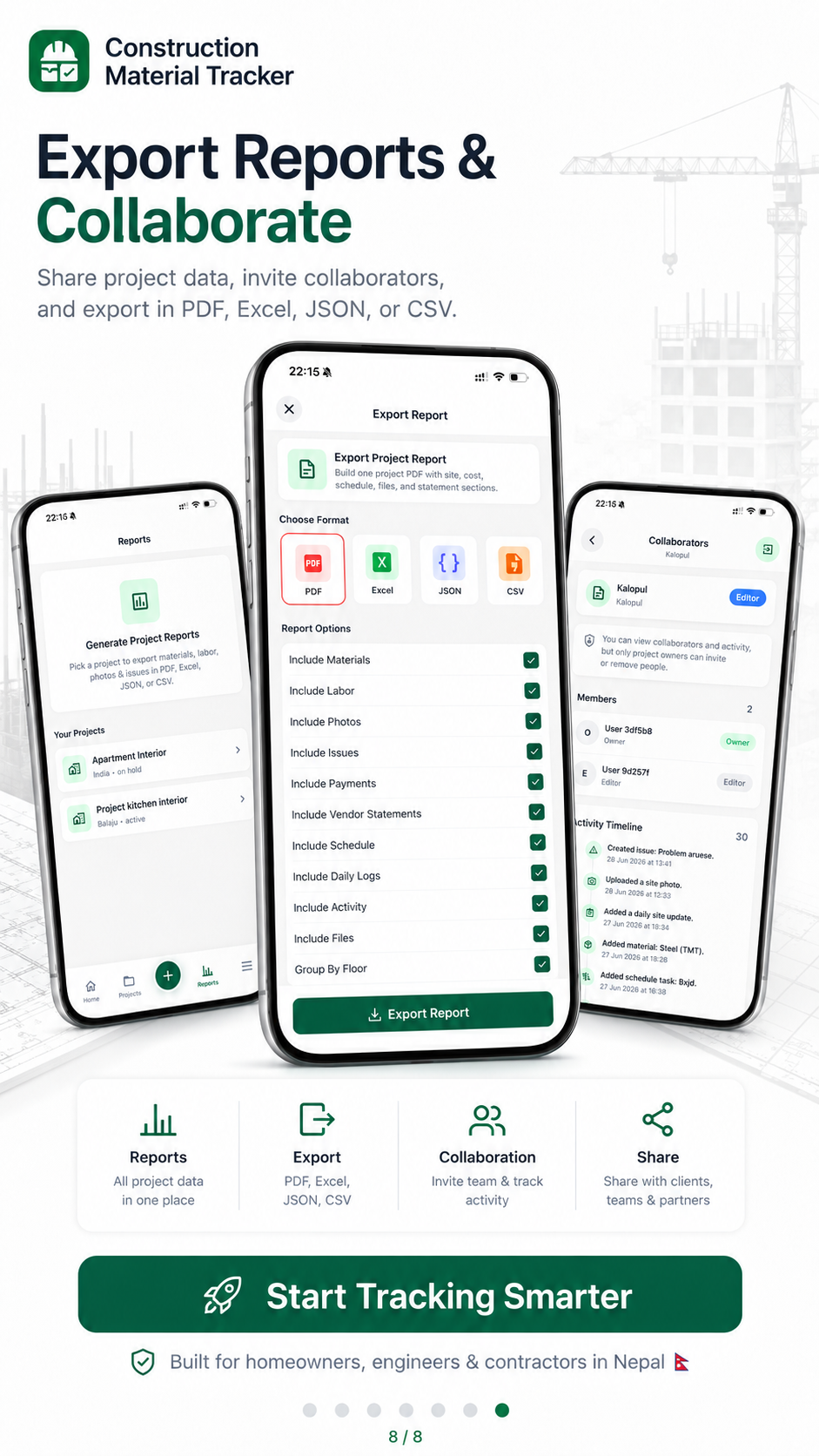
9. Invite collaborators and export reports
- 1Invite your client, engineer or supervisor to the same project when you are ready to share live numbers.
- 2Open Reports and export a PDF of materials, payments, progress or a full summary.
- 3Send the statement after major stages — especially when money is funded from abroad.
Remote monitoring habits for diaspora clients: remote construction monitoring Nepal and building a house in Nepal from abroad.
Quick FAQ
Can I use GharNaksa without an account?
Yes — Guest mode lets you explore and try tracking. Create an account when you need sync, backup and collaboration.
How do I create more than one project?
Repeat the create-project flow for each site. Switch between projects from the home or projects list. Each site keeps its own materials and payments.
What should I log every day?
At minimum: material deliveries that day, labor if you pay daily, any payments, and one progress photo if work moved. Five minutes after the truck leaves beats two hours of reconstruction on Friday.
Is there a written checklist for house planning before the app?
Yes — use free calculators on the tools page and guides like house construction cost Nepal. Estimates plan; GharNaksa records what actually happened.